
You Can Make It Easier to Type One-Handed on Your Smartphone
There was once a time when smartphones were meant to be used with one hand. No more: These days, smartphones are nearly as powerful as computers, and nearly as large as tablets. They virtually require both hands to properly use, or else you won’t be able to reach half of the screen at a time. That’s not always a bad
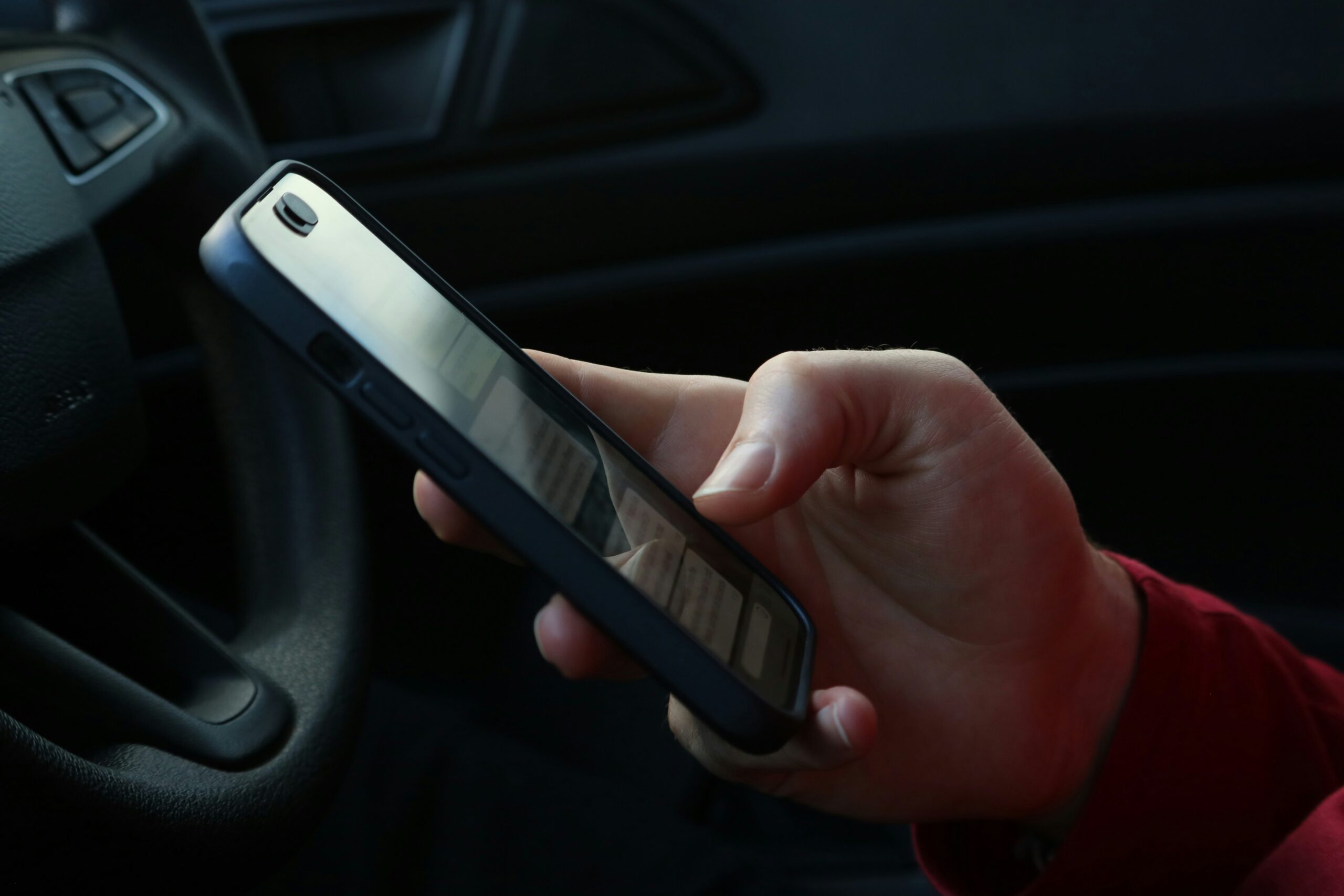
There was once a time when smartphones were meant to be used with one hand. No more: These days, smartphones are nearly as powerful as computers, and nearly as large as tablets. They virtually require both hands to properly use, or else you won’t be able to reach half of the screen at a time.
That’s not always a bad thing, of course. But if you’re on the go, and you’re carrying something in your other hand, it’d be helpful if it were easier to use your smartphone with just the other. At the very least, making it easier to type would be better.
While there’s no way to make your smartphone any smaller than it already, is the good news is, it is possible to make it easier to use. Whether you have an iPhone or an Android, you can adjust the keyboard to make it easier to type with one hand. Once you know this skill, you’ll never need to stretch your thumb across the whole screen just to type a letter.
One-handed keyboard on iPhone
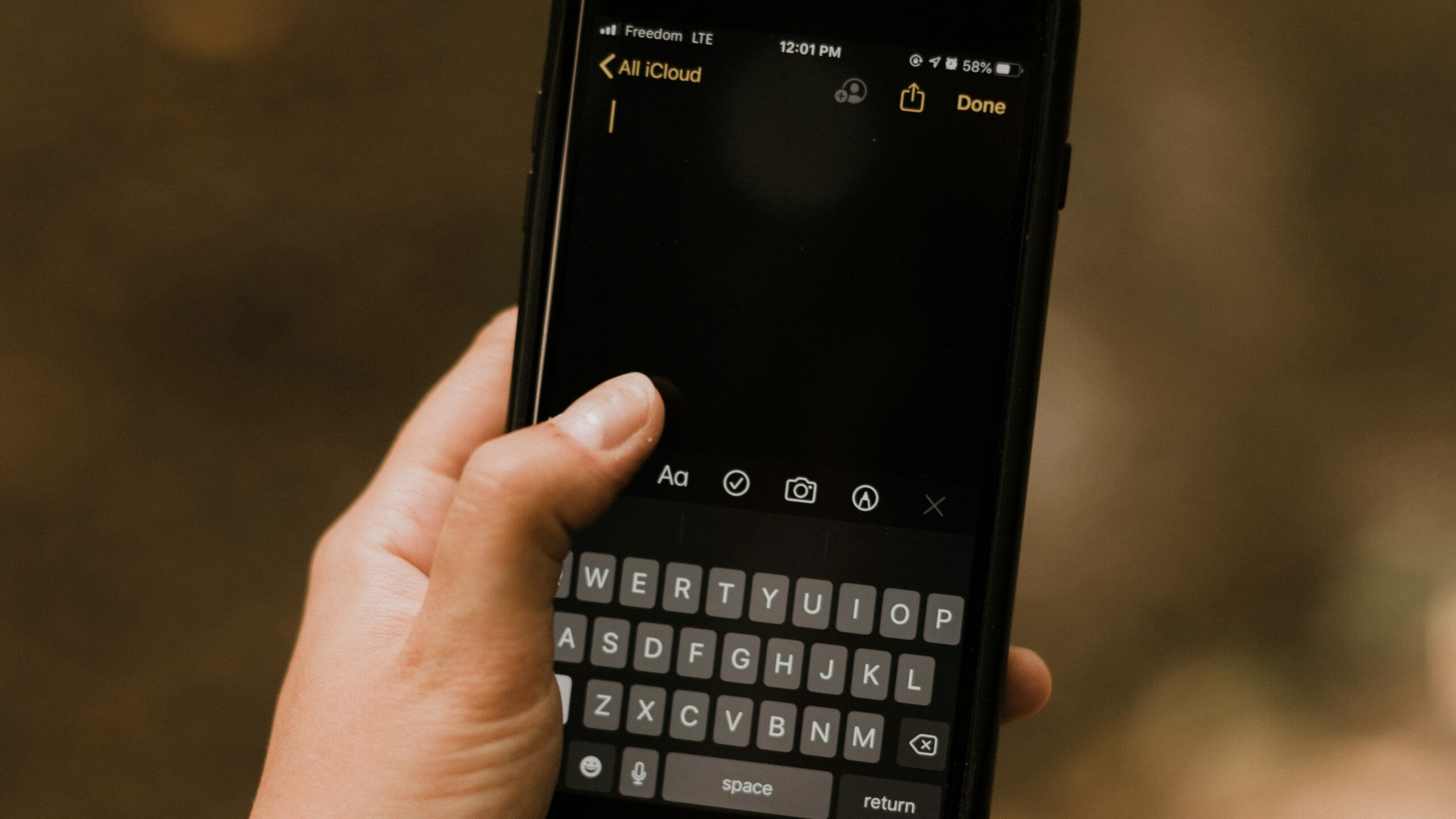
To activate the one-handed keyboard on iPhone, press and hold the emoji icon in the bottom-right of the standard keyboard. Here, you’ll see a pop-up menu, with three keyboard options at the bottom. The middle is the standard full size keyboard, but the left and right shifts the keyboard to the left and right, respectively. If you’re holding your iPhone in your left hand, choose the left, and vice versa.
One-handed keyboard on Android
Different Android devices may handle this differently, but here’s how to do it on two of the most popular models. On Google Pixel phones, tap the four-squares in the top-left of the keyboard, then tap One-handed. On a Samsung Galaxy phone, tap the three dots in the top-right.
On Pixel devices, tap the four-squares menu in the upper left of your keyboard and select One-handed. On Samsung phones, tap the three dots in the upper right of your keyboard to activate this feature.
Share This

android and iPhone now have similar capabilities one keyboard hand usage